How To Hide Blue Tick on GB WhatsApp Without Missing a Single Message
Blue ticks are a love hate thing. They tell people you have read their message, which is great when you want to reply fast, but a nightmare when you need time to think. If you have ever left someone on read and instantly regretted it, you already know why so many people want to hide blue tick on GB WhatsApp.

GB WhatsApp makes this easy. In fact, it gives you more control over read receipts than almost any other messaging app. Let me walk you through how it works and how to set it up the right way.
Why Hiding Blue Ticks Is So Popular
There is a real social pressure around read receipts. The moment two blue ticks show up, the other person expects a reply. Sometimes you read a message and genuinely cannot respond right away. Other times you are just not in the mood. Either way, blue ticks can cause unnecessary stress.
In some cultures and workplaces, read receipts are taken very seriously. People judge response time. They assume silence means you are ignoring them. Hiding the blue tick removes that pressure completely. You can read, think, and reply when you are ready.
GB WhatsApp takes this further than the official app. WhatsApp only lets you turn read receipts on or off globally, and turning them off also stops you from seeing other people’s blue ticks. GB WhatsApp lets you customize the behavior in much smarter ways.
How To Hide Blue Tick on GB WhatsApp
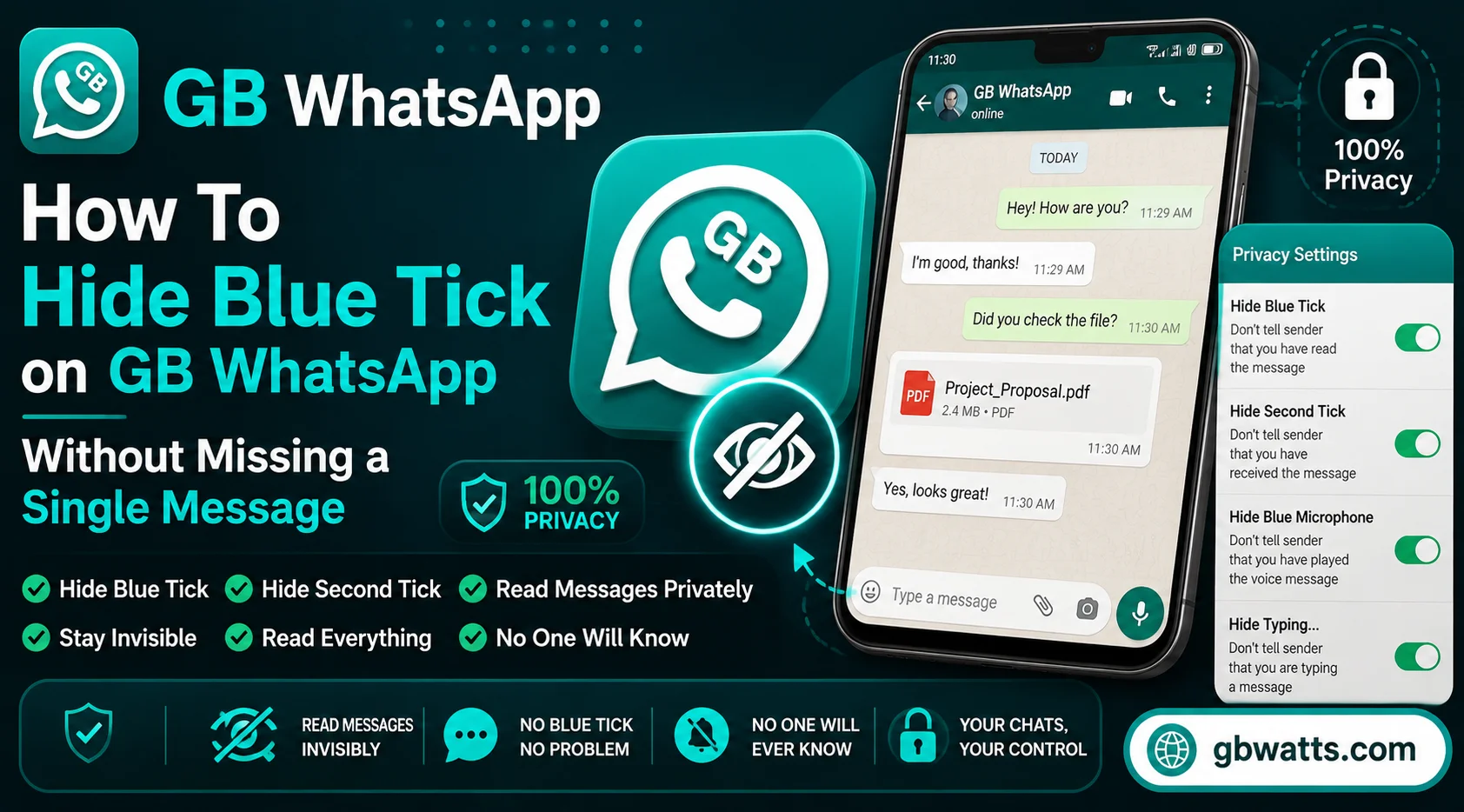
The setup is straightforward. Open GB WhatsApp and head to the menu by tapping the three dots in the top right. Select GB Settings and go to Privacy and Security. Find the Blue Ticks option and toggle it off.
That is the basic step. Once you do this, other people will not see the blue check marks when you read their messages. Your single grey tick stays a single grey tick even after you have read the chat.
But here is the fun part. GB WhatsApp also gives you advanced options right below that toggle. You can choose to hide blue ticks only for certain contacts, hide them only in groups, or use a special “anti revoke” feature that lets you see messages even after the sender deletes them.
Advanced Read Receipt Options
GB WhatsApp is not just about hiding blue ticks. It is about controlling the entire read receipt experience.
Hide for contacts lets you whitelist specific people who will still see blue ticks, while everyone else gets hidden ticks. This is great if you want your close friends or family to know you read their messages, but want privacy with everyone else.
Hide in groups only is a smart toggle for people who are active in big WhatsApp groups. You can keep your normal read receipts for private chats and only hide them in group conversations where dozens of people might be watching.
Anti revoke messages is a bonus feature that prevents other people from deleting messages they sent you. Even if they hit delete for everyone, you can still see the original text. It works hand in hand with blue tick hiding because you can read messages without confirming the read.
View once bypass is another neat trick. WhatsApp recently introduced view once photos and videos that disappear after being opened. GB WhatsApp can let you save those files or view them multiple times.
Should You Hide Blue Ticks From Everyone
This is a personal choice, but here is how to think about it. If you use WhatsApp mostly for friends and family, hiding blue ticks can be a relief. People will not expect instant replies and you can respond at your own pace.
If you use WhatsApp for work or customer support, hiding blue ticks completely might cause problems. Clients or colleagues may think you are ignoring them. In that case, use the per contact feature. Hide blue ticks for personal chats and keep them visible for work contacts.
Another good middle ground is to hide blue ticks only when you are busy. GB WhatsApp lets you set a schedule or manually toggle the feature on and off as needed. That way you get the best of both worlds.
Common Mistakes To Avoid
One mistake people make is turning off blue ticks and then expecting to see other people’s blue ticks. The official WhatsApp blocks this, and GB WhatsApp also respects that rule by default. If you hide your own blue ticks, you cannot see theirs either, unless you enable a separate option called “always show blue ticks after reply” in GB Settings.
Another mistake is forgetting to update GB WhatsApp regularly. Older versions sometimes have bugs in the privacy module. Newer versions are more stable and include more customization options.
Also, do not confuse hiding blue ticks with blocking messages. Hiding blue ticks does not stop notifications. You will still get alerts for new messages. If you want silence too, mute the chat or turn off notifications separately.
Real World Scenarios Where This Helps
Imagine you are at a meeting and your phone buzzes with an important message from your partner. You peek at the message under the table. With blue ticks on, they now know you read it. With blue ticks off, you can finish your meeting and reply calmly ten minutes later. No guilt, no pressure.
Or think about group chats with distant relatives. Someone posts “We miss you, call us!” and you read it but cannot call right now. Blue ticks gone, awkwardness avoided.
Even in professional settings, hiding blue ticks during off hours can help. You check a quick message at 10 PM, then go to bed. The client never sees a blue tick so they do not expect a 10 PM reply.
FAQs
How do I hide blue tick on GB WhatsApp without losing my own read receipts?
Go to GB Settings, then Privacy and Security, and enable “Always show blue ticks after reply.” This way others do not see your ticks, but you still see theirs.
Does hiding blue ticks affect voice notes and media?
No, it only affects read receipts. You can still listen to voice notes, view images, and watch videos as normal.
Can I hide blue ticks for one specific person?
Yes, GB WhatsApp lets you customize blue tick visibility per contact. You can hide ticks for some people and keep them visible for others.
Will the sender know I hid blue ticks?
No, there is no notification or alert. From their side, the message just stays with one or two grey ticks.
Does hiding blue ticks work in WhatsApp calls?
No, blue ticks are only for text and media messages. Call activity and call history are controlled separately in the privacy settings.
Final Thoughts
Learning how to hide blue tick on GB WhatsApp is honestly one of the first things most users do after installing the app. It removes a huge source of social stress and gives you full control over your response time. Combined with the other privacy features in GB WhatsApp, it makes the app feel like it actually works for you, not the other way around.